
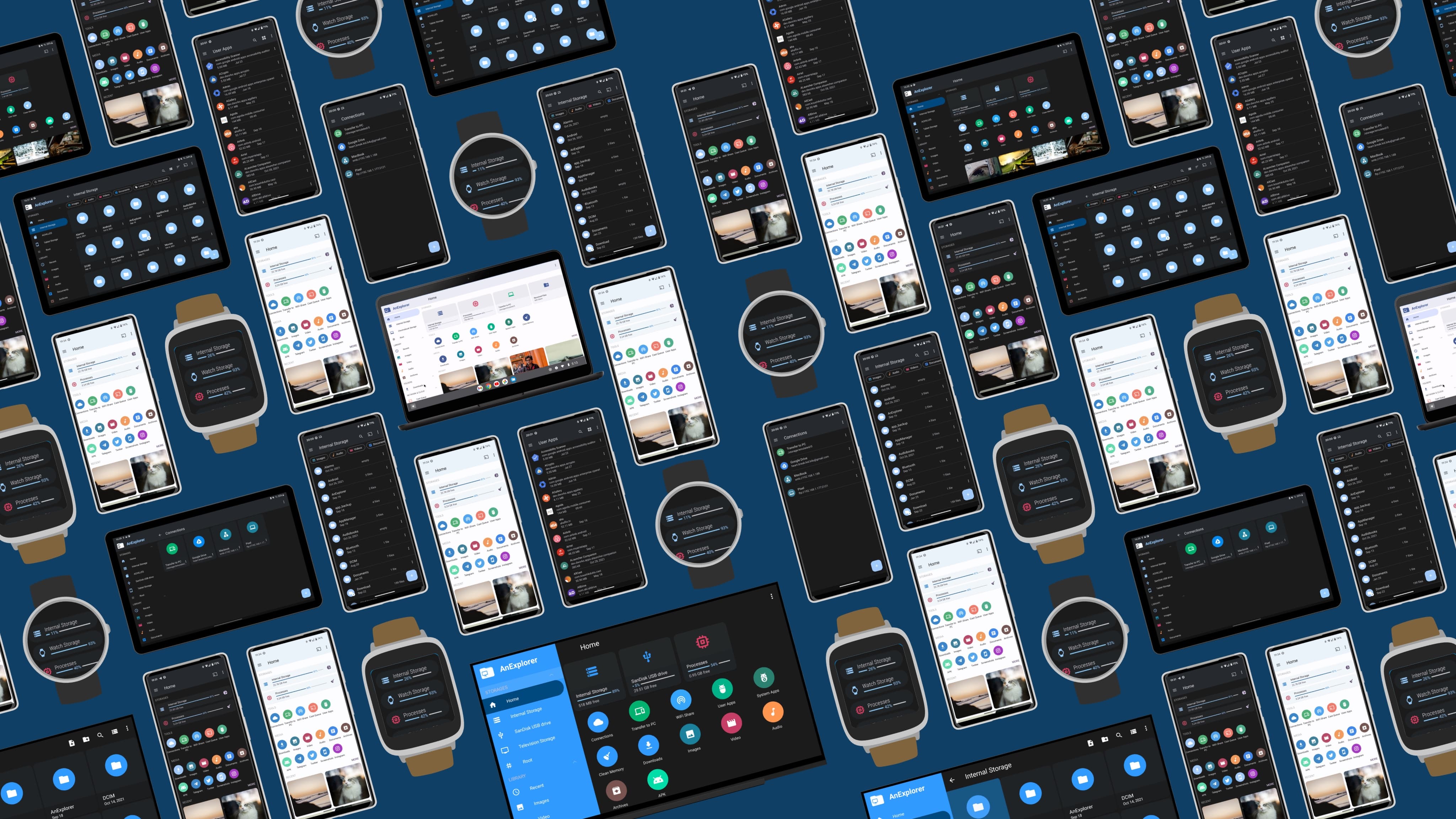
File Manager for XREAL AR Glasses
XREAL glasses are a display only — they need a compute source: an Android phone, the XREAL Beam Pro, or a compatible laptop. AnExplorer runs on the companion Android device (Beam Pro or tethered phone) and lets you manage files that display on XREAL's virtual screen.
For XREAL Air 2 Ultra (with onboard Android XR chip), AnExplorer installs directly on the glasses.
Compatible XREAL Models
| Model | Compute | Standalone | Notes |
|---|---|---|---|
| XREAL Air | Phone / Beam | ❌ | Display only |
| XREAL Air 2 | Phone / Beam | ❌ | Display only |
| XREAL Air 2 Pro | Phone / Beam | ❌ | Electrochromic tint |
| XREAL Air 2 Ultra | Phone / Beam | Partial | 6DoF tracking |
| XREAL One | Phone / Beam / Standalone | Partial | |
| XREAL Beam Pro | Standalone | ✅ | Android 13 compute unit |
Install AnExplorer for XREAL
On XREAL Beam Pro (most common):
- Open the Play Store on Beam Pro
- Search for AnExplorer and install
- Connect XREAL glasses via USB-C — AnExplorer displays on the virtual screen
On tethered Android phone:
- Install AnExplorer from the Play Store on your phone
- Connect XREAL glasses via USB-C with display output enabled
- AnExplorer appears on the XREAL virtual display
Sideload Apps on XREAL Setup
Some apps are not available natively. AnExplorer's APK installer makes sideloading simple:
- Transfer the APK to Beam Pro via WiFi or USB
- Open AnExplorer and navigate to the APK
- Tap to install — handled by the built-in APK Installer
Transfer Files from Phone to XREAL Beam Pro
- Open AnExplorer on your primary Android phone → WiFi Share
- Select files to transfer
- On the Beam Pro, open AnExplorer → Network → WiFi Receive
- Accept the transfer
Full guide: Android to Android Transfer
Key Features for XREAL Setup
- APK Installer — sideload apps to Beam Pro
- USB OTG — Beam Pro has USB-C with OTG support
- Cloud storage — Dropbox, OneDrive, Box
- SMB / NAS — stream media from home server to virtual screen
- WiFi Transfer — phone → Beam Pro without cables